Adjustable Aluminum Tablet Stand for Better Posture
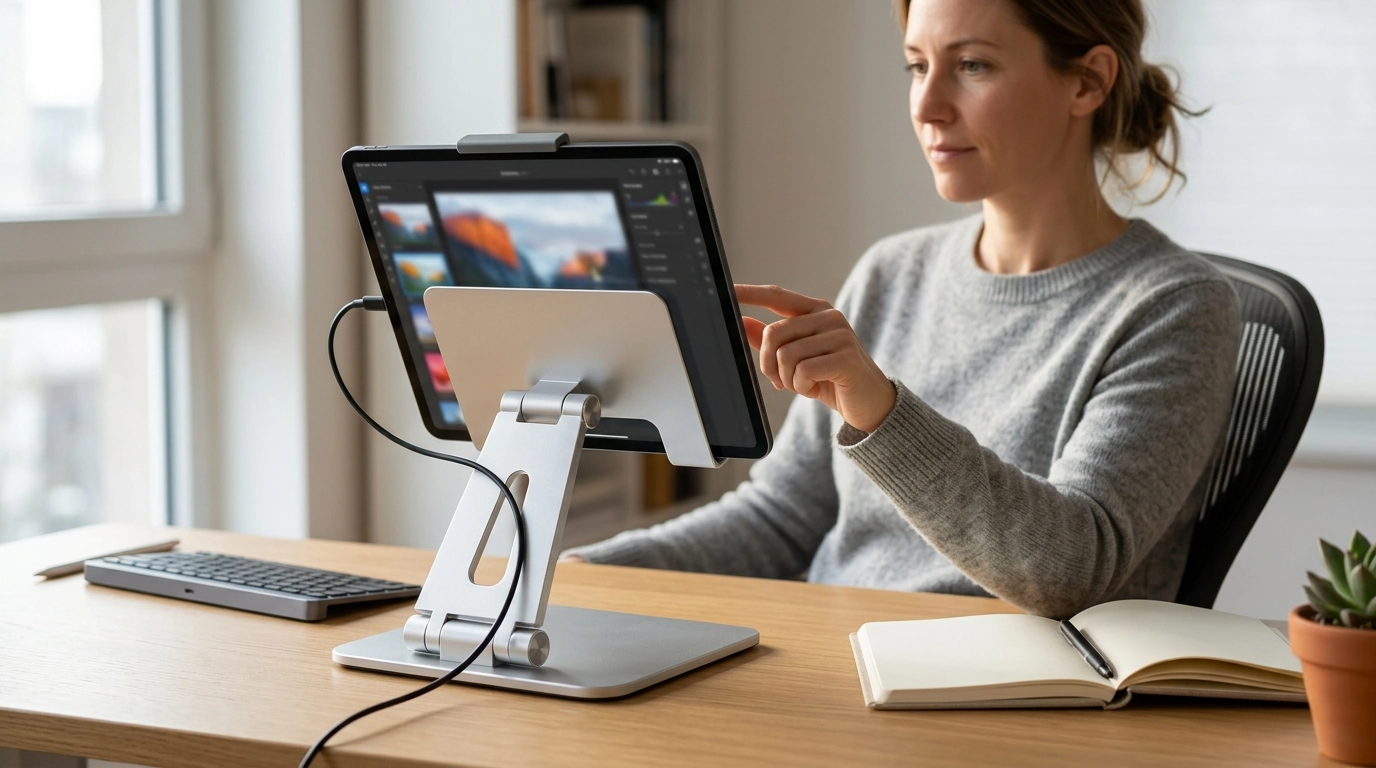
Adjustable Aluminum Tablet Stand: Comfortable Viewing, Stable Support, Cleaner Desk
A sturdy tablet stand can reduce neck strain, keep screens steady during typing or tapping, and free up space for a cleaner work or entertainment setup. An adjustable aluminum design adds durability and a more secure feel than lightweight plastic options, while angle and height flexibility helps match different postures, desks, and devices.
What an adjustable aluminum stand changes in daily use
Small upgrades in how a tablet sits on your desk can make a noticeable difference across work, study, and downtime. An adjustable aluminum stand turns a handheld device into something closer to a mini workstation—without permanently taking over your space.
- Raises the screen closer to eye level to support a more neutral head-and-neck position.
- Improves stability for tapping, drawing, reading, video calls, and watching content.
- Helps manage cables and desk clutter by lifting the device off the surface.
- Offers a dedicated spot for the tablet at home, at a workstation, or in a travel setup.
Ergonomics guidance from sources like OSHA’s Computer Workstations eTool and Mayo Clinic’s office ergonomics guide consistently emphasizes reducing sustained neck flexion and keeping screens at a comfortable line of sight—exactly what a stand helps you do.
Key features that matter most
Not all stands feel the same in real use. A good adjustable aluminum model should feel planted when you interact with the screen and should keep its position throughout the day.
- Adjustability range: look for angle changes that work for reading, typing, and viewing without glare.
- Hinge firmness: a stand should hold position without drifting when the screen is tapped.
- Base footprint and grip: wider bases and non-slip pads help prevent sliding and wobble.
- Device protection: contact points should have padding to reduce scratches and slipping.
- Ventilation: open-back or raised designs can help with heat dissipation during charging or long sessions.
Aluminum is popular because it adds reassuring weight and rigidity, especially for frequent tapping, scrolling, and on-screen typing. The best designs combine that rigidity with soft, well-placed silicone/rubber pads so the stand feels secure without risking scuffs.
Fit and compatibility: tablets, cases, and accessories
Before choosing a stand, consider what “tablet” means in your routine: bare device, rugged case, keyboard cover, stylus, or all of the above. The right fit prevents sliding, button pressure, and awkward charging angles.
- Case-friendly clearance: thicker protective cases may need a wider or deeper lip support.
- Orientation support: ensure the stand can comfortably handle both portrait and landscape modes.
- Accessory workflows: consider room for a charging cable, earbuds, or a stylus while mounted.
- Surface pairing: on smooth desks, rubber feet help; on soft surfaces, a broader base improves stability.
A quick practical check: place your tablet (in its most-used case) on a book at a comfortable height and angle, then note how much “ledge” you’d want under the bottom edge. That approximate ledge depth is the minimum cradle support you should look for.
Comfort and ergonomics for work, study, and calls
A stand is a positioning tool. Used well, it helps reduce the repetitive “head down” posture that can build discomfort over time. Harvard Health also highlights common strategies for avoiding neck pain, including posture awareness and reducing strain from sustained positions (Harvard Health Publishing: tips to prevent neck pain).
- Position the top of the screen closer to eye level to reduce repeated neck flexion.
- Use a separate keyboard if typing for longer sessions; a stand can improve posture but won’t replace a full workstation setup.
- Reduce glare by adjusting angle relative to windows and overhead lights.
- For video calls, raise the tablet so the camera sits near eye level for a more natural angle.
Common use cases and the best angles to start with
Quick setup guide by activity
| Activity | Starting angle | Height goal | Extra tip |
|---|---|---|---|
| Video calls | Higher, more upright | Camera near eye level | Check lighting to avoid shadows |
| Watching shows | Mid recline | Comfortable line of sight | Adjust to reduce reflections |
| Reading | Mid to low recline | Less neck bend | Increase font size instead of leaning forward |
| On-screen typing | Lower incline | Hands comfortable, shoulders relaxed | Consider an external keyboard for long sessions |
| Drawing / note-taking | Low to mid incline | Stable arm position | Use a non-slip desk mat if needed |
Care, durability, and travel notes
Product picks to upgrade your setup
- Adjustable Aluminum Tablet Stand — A compact, budget-friendly choice for elevating and angling a tablet for more comfortable viewing and steadier use.
- Coding with Confidence in the Age of AI – Ultimate Digital Guide for Developers — A digital guide that pairs well with a tablet-on-stand workflow for focused reading, note-taking, and skill-building.
- How to Use AI to Plan Family Activities — A quick, structured planner that’s easy to follow on a tablet during scheduling sessions or kitchen-table planning.
FAQ
Will an adjustable tablet stand work with a tablet in a thick protective case?
It depends on the depth and width of the stand’s support lip and the placement of its padding. Measure your tablet’s thickness with the case on and confirm the cradle can hold it securely without pressing side buttons or forcing a tight fit.
How high should a tablet be positioned to reduce neck strain?
Aim to bring the screen closer to eye level so your head stays more neutral rather than tilted down. The ideal height varies by chair, desk, and posture, and longer typing sessions are usually more comfortable with an external keyboard and the tablet raised.
Can aluminum stands scratch a tablet or make it slip?
Quality aluminum stands use rubber or silicone contact points to prevent metal-on-device contact and to improve grip. Check that the device rests only on padded areas, and keep those pads clean so dust doesn’t reduce traction.





Leave a comment